

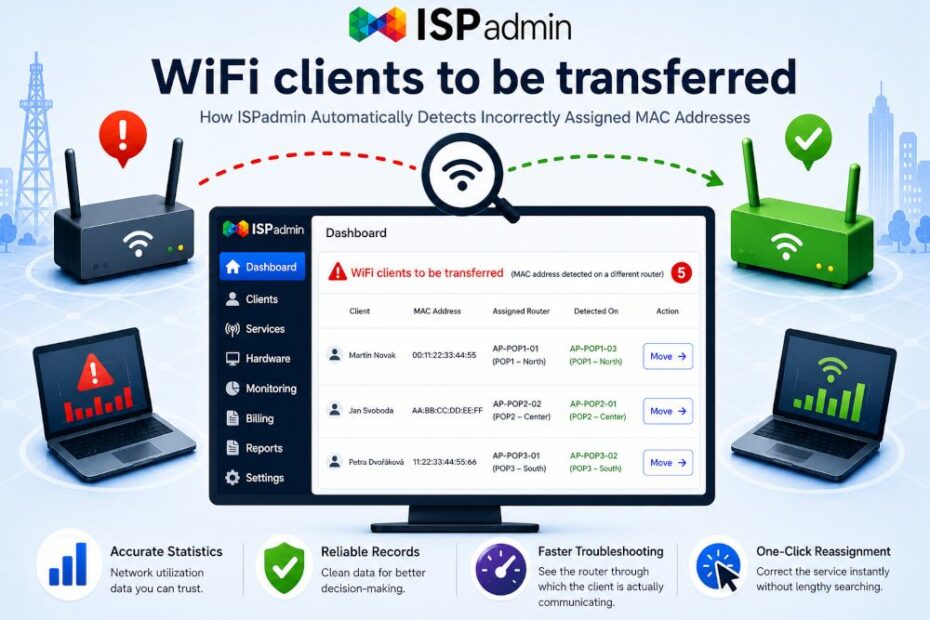
ISPadmin 5.42 adds a new Dashboard widget — WiFi clients to be transferred (MAC address found on another router). The system recognizes on its own that a client’s device is physically connecting through a different access point than the one recorded for its internet service, and lets you fix it with a single click. For an ISP this means cleaner data, more accurate statistics, and fewer „mysterious“ issues that are not actually network faults but record-keeping faults.
Did your WiFi clients reconnect to a different access point after a storm and never return to where you have them recorded? Did a technician repoint a device to another AP on the same POP and forget to write it down? How many services do you have in ISPadmin assigned to an access point the client hasn’t really used in ages? If the answer is „no idea“, version 5.42 has good news: from now on ISPadmin watches it for you.
Why it matters
Every internet service in ISPadmin has a recorded access point — a specific AP / router through which the client connects. This link is just a record, but a lot depends on it: statistics and load graphs for access points, capacity planning, and quick diagnostics when a client calls with a problem.
But in wireless networks reality changes faster than the paperwork keeps up. A client’s CPE reconnects to a different AP for a better signal, a technician repoints a device to another access point on the same POP during service, after an outage some clients move elsewhere. The device’s MAC address stays the same — but it is physically read on a different access point than the system assumes in its records.
The result? A conflict arises between what is set on the service and what is actually read from the device. Graphs and statistics are drawn according to the records, so the load is attributed to an access point where the client no longer is. And when you plan investments or tackle congestion on such data, you are basing decisions on a wrong picture of the network.
What the new widget does
ISPadmin continuously reads which access points each MAC address appears on. The new Dashboard widget compares this data with the records and lists every case where a client’s MAC address was found on a different router than the one recorded for the service.
In other words: the widget is a list of mismatches between what you have in the system and what is actually happening in the network — services where the system knows the client should be elsewhere (in fact, an exclamation mark already flags such cases in the router overview today).
And here is the main thing — you don’t have to rewrite anything manually. Directly from the widget (and likewise from the WiFi clients overview on access points in Hardware → Routers) you can click through to the form to move the service to the correct access point and resolve it in one go. And if the target device where the MAC is actually read doesn’t have an access point yet, the system lets you create one first and only then move the service onto it. No searching the client card, no manual digging.
Three roles, three reasons to appreciate it
The technician gets a concrete „this doesn’t add up“ list instead of a vague feeling that the data is a mess. After every intervention, outage, or seasonal repointing they open the widget, run through the mismatches and reconcile them — even from the mobile app while still in the field.
The network planner finally works with data they can trust. Access point load matches reality, so decisions about boosting capacity, adding an AP, or rerouting clients stand on solid ground, not on outdated records.
The ISP owner has a single data-quality indicator. An empty widget means the records match reality. A full widget is a signal that something is happening in the field that is not being reflected in the system — and that it is time to address it before it becomes chronic disorder.
How it fits into the rest of the system
The widget isn’t a standalone feature. It builds on the work with access points and WiFi clients that ISPadmin does in the Hardware → Routers module. Version 5.42 also added the same logic to WiFi clients on access points: if the system detects a MAC address on a different router, it offers a click-through to the relocation form right there.
A clean „service ↔ access point“ link then carries further — into client statistics and router load graphs. A single reconciled record thus improves accuracy in several places at once.
Three tips to get the most out of the widget
- Tip 1 — Add it to your morning routine. The Dashboard widget takes a few seconds. Going through it every morning (or after every larger network intervention) takes less time than later investigating why the statistics don’t add up.
- Tip 2 — React right after outages and repointing. It is exactly the situations where WiFi clients mass-migrate to backup points that produce the most mismatches. If you reconcile them right away, the records never get a chance to drift.
- Tip 3 — Treat a full widget as a warning, not extra work. When it regularly shows many records, it is not a system fault — it is a sign that some field process doesn’t end with an entry into ISPadmin. Fix the cause, not just the symptom.
What’s in it for the ISP
- Trustworthy statistics — access point load matches reality, so capacity planning rests on the right numbers.
- Faster diagnostics — when a client calls with a problem, you see the router they are actually communicating through, not last year’s record.
- Less data cleanup — mismatches are resolved with a click the moment they arise, not in a bulk review once a year.
- Measurable record quality — the widget’s state is a simple indicator of how well your data matches reality in the network.
How to get started
You will find the WiFi clients to be transferred widget in ISPadmin 5.42 on the Dashboard — just add it to your displayed widgets. If you don’t have the version deployed yet, request an update. Then we recommend three steps:
- Step 1 — Add the widget to your dashboard and see how many mismatches the system currently reports; it is usually the first aha moment.
- Step 2 — Reconcile the existing records by clicking through to the service relocation form.
- Step 3 — Agree within the team on who checks the widget and how often, so your records stay clean going forward.
If you would like to test the feature, we are at your disposal.