How to make ISPadmin reachable only from your network
The ISPadmin login page is usually visible from the whole internet. Anyone can try passwords on it or look for weak spots, even though your staff only work from the office, over VPN or from a call centre. This guide shows how to make ISPadmin reachable only from the addresses you choose. The Client portal stays available to your customers as before.
This guide applies to ISPadmin 5 installed on your own server. You need root access to the server.
How it works
ISPadmin runs on the Apache web server. The system and the Client portal each have their own domain and their own <VirtualHost> block in the configuration. You set the restriction only for the system domain, and the Client portal is not affected. You do not need to change port 80 (HTTP), it only redirects to HTTPS.
The firewall in Settings / Syst. settings / Security is not enough for this. It allows or blocks whole ports, so closing port 443 would close the Client portal as well.
1. List the addresses people work from
Go through everyone and everything that accesses ISPadmin:
- the office and branches (public IP addresses),
- your internal network and the VPN that field technicians use,
- an external call centre or accountants, if they work in ISPadmin,
- the server with your website, if it has a service request form connected to ISPadmin,
- systems that call the ISPadmin API,
- the public IP address of the ISPadmin server itself.
A good starting list is the table in Settings / Syst. settings / Security. Rows with HTTPS (443) checked are the addresses the ISPadmin firewall allows HTTPS for. The row with the note Global applies to all addresses and does not belong in the list.
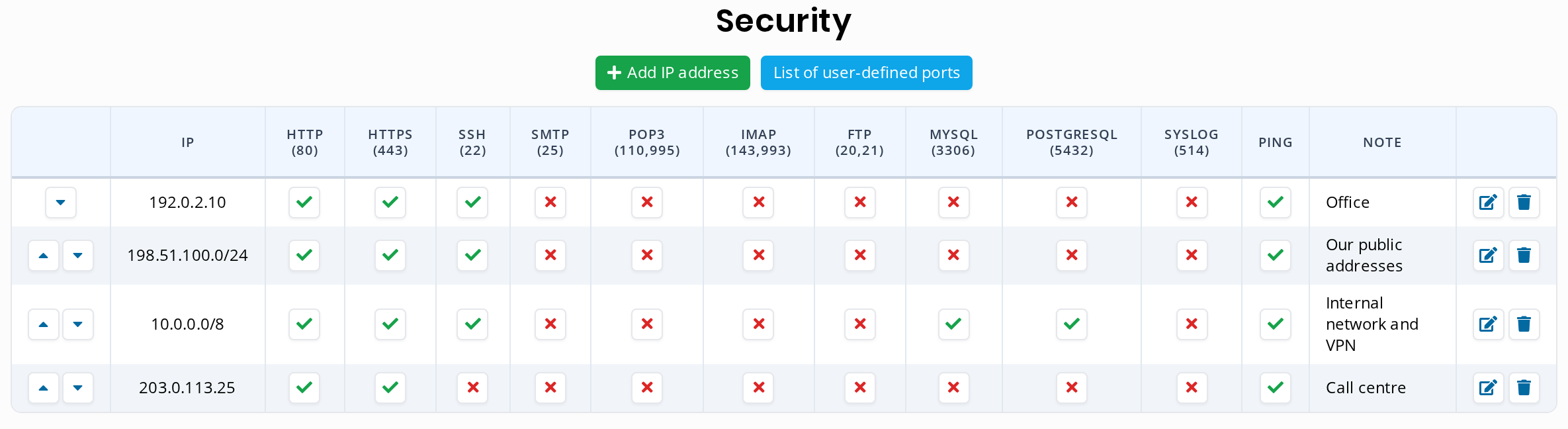
The table is not copied into the Apache configuration automatically. You copy the list by hand and update both whenever your addresses change.
2. Back up the configuration
The system configuration is in /etc/apache2/sites-enabled/ispadmin.conf. Back it up before you edit it:
cp /etc/apache2/sites-enabled/ispadmin.conf /root/ispadmin.conf.bak-$(date +%Y%m%d)3. Allow only selected addresses
In the file, find the <VirtualHost *:443> block with the system domain (DocumentRoot "/data/support/ispadmin/new/www/"). It contains <Directory /data/support/ispadmin/new/www/> with the line Require all granted. Edit it as in the example: replace Require all granted with your address list from step 1, add the SetEnvIf line above the block and the Let’s Encrypt exception below it:
SetEnvIf Request_URI "^/(paypal/notify|supercash/platba_sc\.php|billing-bank-kb-notification-endpoint/v[0-9]+/[A-Za-z0-9/_-]+)$" ISPADMIN_CALLBACK

<Directory /data/support/ispadmin/new/www/>
  Options +ExecCGI
  Options FollowSymLinks MultiViews
  AllowOverride All
  # ISPadmin only from allowed addresses
  # office
  Require ip 192.0.2.10
  # our public addresses
  Require ip 198.51.100.0/24
  # internal network and VPN
  Require ip 10.0.0.0/8
  # call centre
  Require ip 203.0.113.25
  # payment notifications (PayPal and others)
  Require env ISPADMIN_CALLBACK REDIRECT_ISPADMIN_CALLBACK
</Directory>

# Let's Encrypt certificate renewal must work from anywhere
<Directory /data/support/ispadmin/new/www/.well-known/acme-challenge/>
  Require all granted
</Directory>
The addresses in the example are placeholders, use your own. Write a single address on its own and a whole range with a mask (/24). Always put a # comment on a line of its own, Apache does not accept it after an address. If the server also has IPv6, add your IPv6 ranges too, for example Require ip 2001:db8::/32.
What the exceptions are for:
- Payment notifications. PayPal and some payment services send ISPadmin payment notifications from their own servers, and you do not know their addresses in advance. The exception lets through only these specific URLs. All other system pages stay closed to them. The
SetEnvIfline must be inside the<VirtualHost>block, not inside<Directory>. If you do not use these payments, leave out the lines withISPADMIN_CALLBACK. - Let’s Encrypt. The certificate renews automatically, and the Let’s Encrypt validation server must reach your server from anywhere. Without this exception the certificate would stop renewing, and once it expires, browsers would show an error.
4. Check and reload the configuration
apache2ctl configtest
systemctl reload apache2
If configtest does not print Syntax OK, do not reload. Fix the error it reports first.
5. Test that it works
- Log in to ISPadmin from an allowed address as usual.
- Open the system address from an address that is not allowed, for example from a phone on mobile data. You should see a 403 Forbidden error.
- Open the Client portal. It should work from anywhere.
- Check the certificate exception. Create a test file on the server:
From an address that is not allowed, openmkdir -p /data/support/ispadmin/new/www/.well-known/acme-challenge echo ok > /data/support/ispadmin/new/www/.well-known/acme-challenge/testhttp://your-domain/.well-known/acme-challenge/test. It should showok. Then delete the file. - After the first payments come in, check that they are matched as before.
More protection inside ISPadmin
The Apache restriction protects the whole system. In ISPadmin you can also protect individual users:
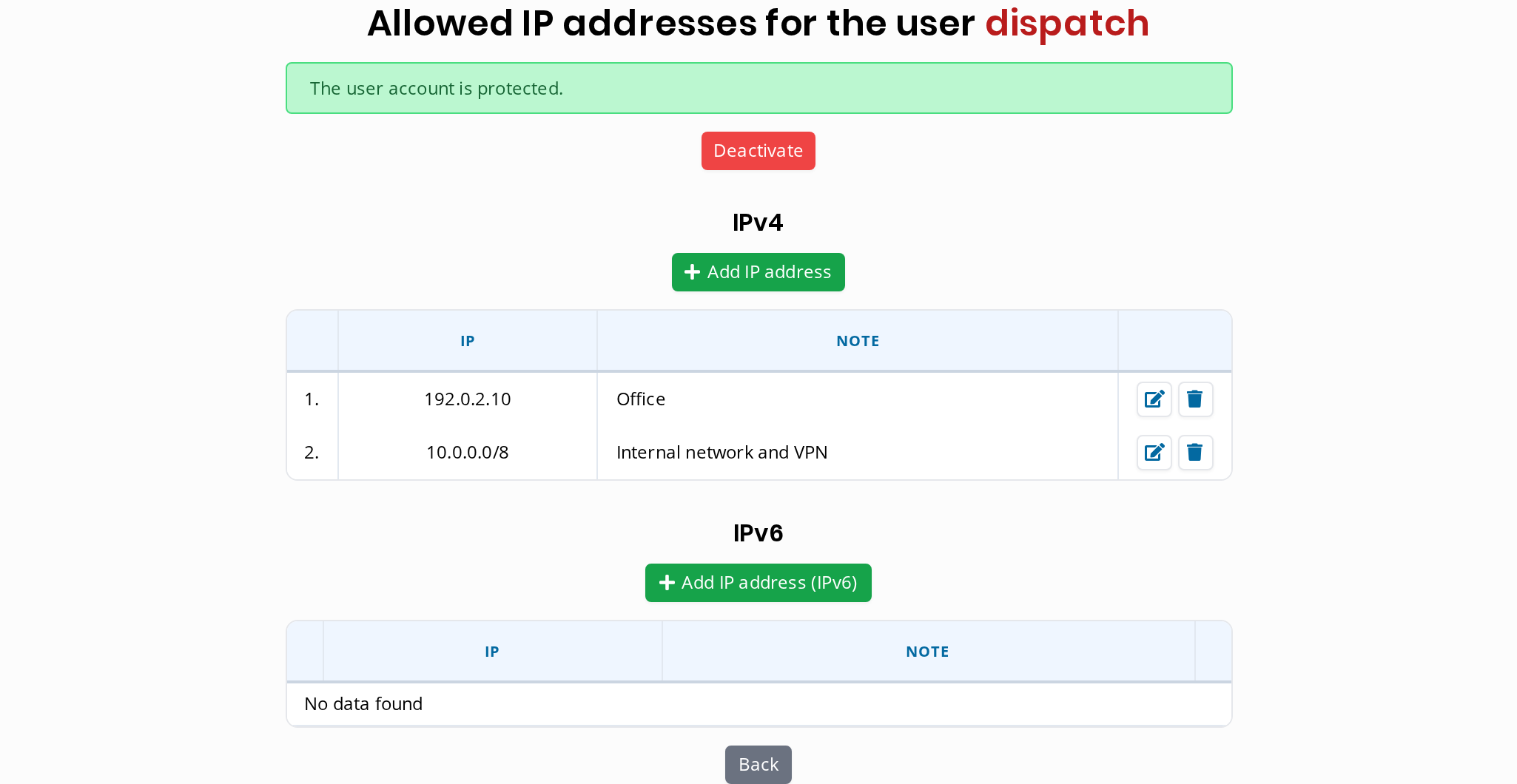
- Allowed IP addresses for the user. In Settings / Administrators / Administrators, click the lock icon next to a user, add the addresses and click Enable. The user can then log in only from them, even if they reach the login page. This is useful for accounts with the highest rights. IPv6 addresses are supported from version 5.41.
- Two-factor authentication. In the same list, choose Enable 2FA in the 2FA column. At the next login the user has to set up an authenticator app on their phone, and from then on also enters a code from it.
Common problems
- The restriction disappeared after a while. The
certificate.plscript, which sets up domains and certificates, recreatesispadmin.confwithRequire all grantedwhen it installs a certificate for the system. It saves the previous version next to it asispadmin.conf.acme.…. Add the restriction again every time you run the script. The regular automatic certificate renewal does not change the configuration. - The form on your website or an API integration stopped working. The address of the server that calls ISPadmin is missing from the list. Add it as another
Require ipline. - Payments from a payment gateway are no longer matched. The gateway sends notifications to the system address from a server that is not in the list. Ask the gateway provider for the addresses of its servers and add them as
Require ip, or contact our support. - Calls from the server itself to
https://localhoststopped working. 127.0.0.1 is not in the list. If you need it, addRequire ip 127.0.0.1. - You locked yourself out. Log in to the server over SSH or the console, restore the backup from step 2 and reload Apache.
- The Client portal shows 403. Your customers probably open it through the system address (
…/clientinterface/). The Client portal needs its own domain.
What next
More steps towards safer operation, a password policy for ISPadmin users and a safer Helpdesk are covered in ISP security after NIS2.