Tariffs for selected invoice groups and unlimited speed
ISPadmin 5.44 beta2 brings four changes to tariffs. You can offer a tariff only to clients in selected invoice groups, set the speed as unlimited, and choose which tariff name and speed clients see in the Client portal.
Available from ISPadmin 5.44 beta2.
What’s new
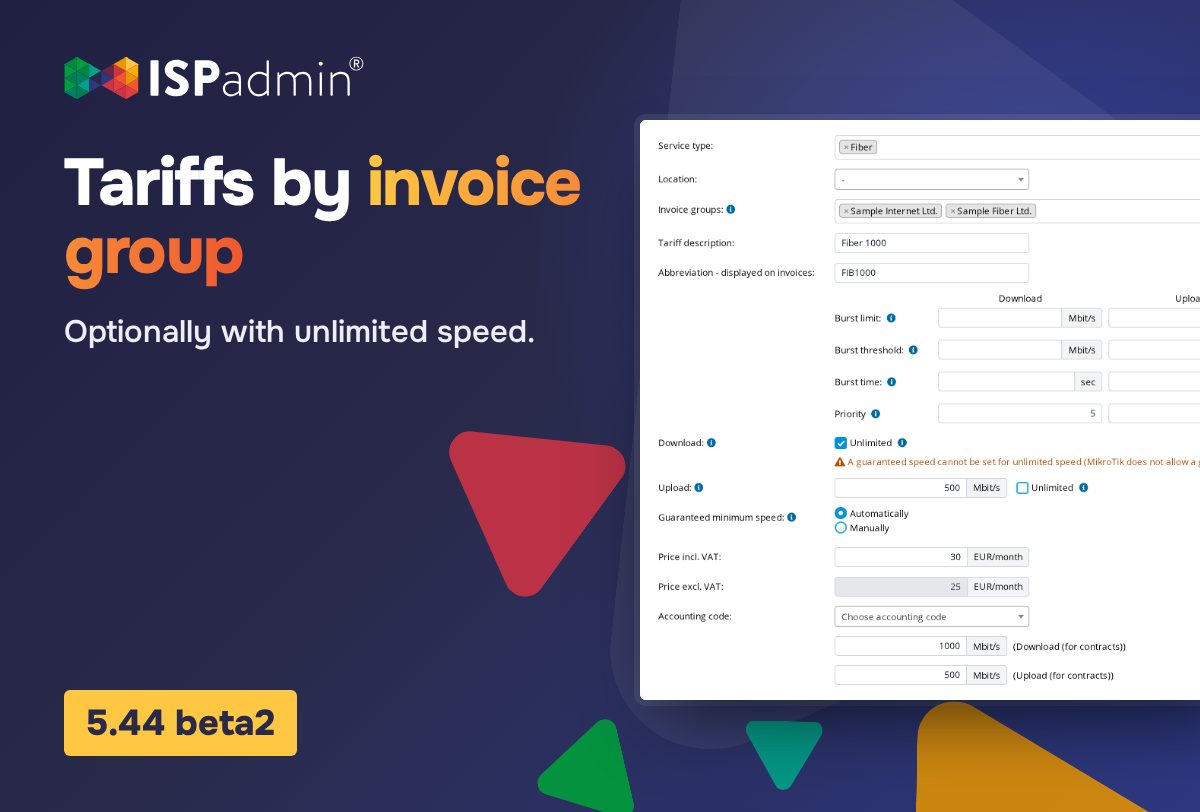
- For an Internet tariff, you select the Invoice groups it is available to. The service form then offers only tariffs allowed for the client’s invoice group.
- The tariff speed can be set as unlimited with the Unlimited option, separately for download and upload. It is applied to MikroTik routers without a limit.
- In the Client portal, the Tariff item can show the tariff abbreviation instead of the tariff description. The abbreviation is also displayed on invoices.
- The Speed item in the Client portal and on the Client card can show the speed for contracts instead of the tariff speed.
A tariff for some invoice groups only
If you run several companies or brands in ISPadmin, each as a separate invoice group, your staff no longer have to work out which tariffs belong to which group when they create a service. In Settings / Tariffs / Internet, open a tariff and select one or more groups in the Invoice groups field. If you leave the field empty, the tariff is available to all invoice groups, as before. The list of tariffs has a new Invoice groups column.
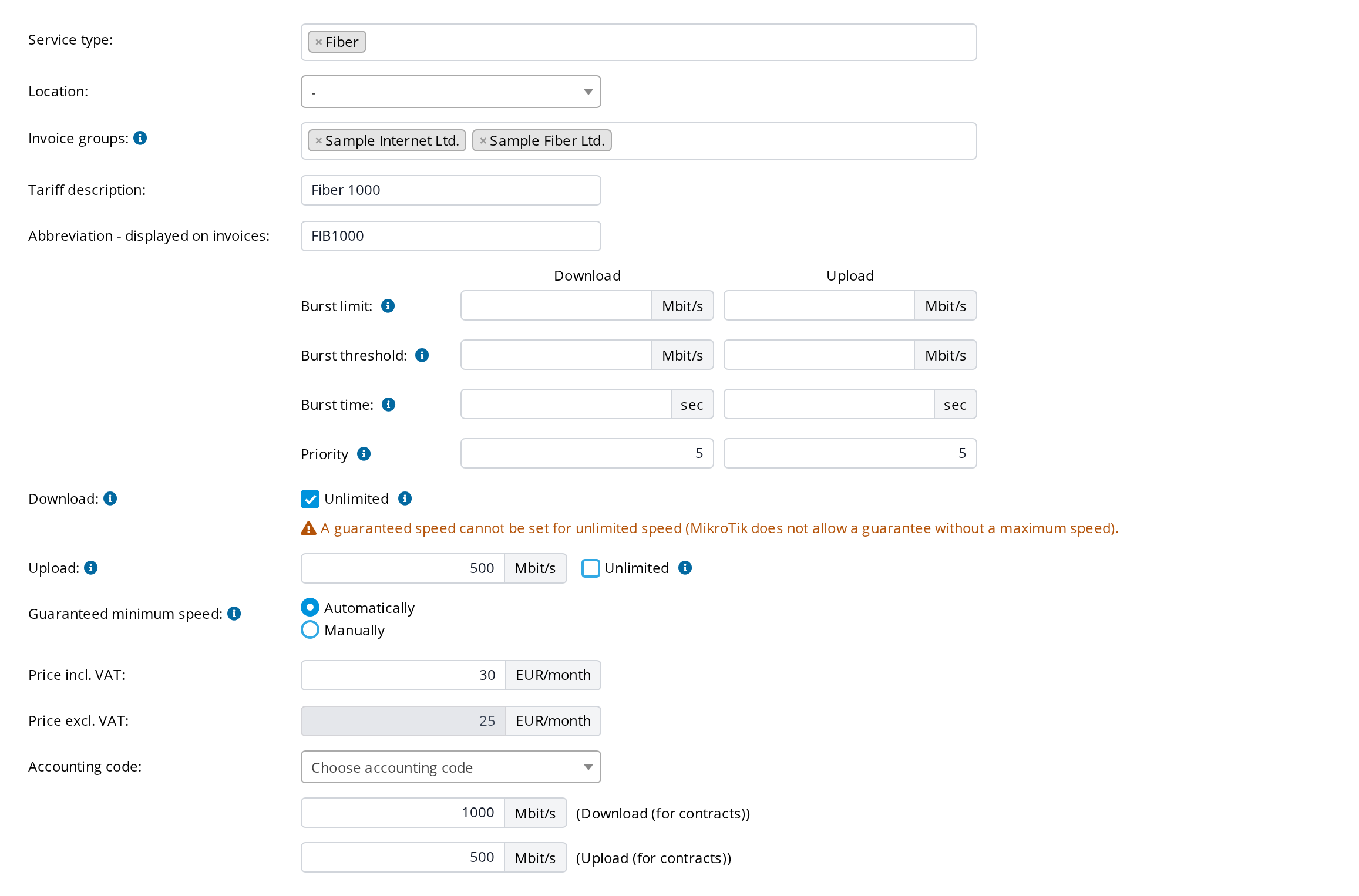
The restriction applies in these places:
- Client card / Services: the Internet service form offers only tariffs allowed for the client’s invoice group. If the service already has a tariff that is not allowed, the service keeps it and ISPadmin displays a warning. The promo tariff of the service is kept as well.
- Other / Tools / Bulk tariff change: services of clients whose invoice group is not allowed for the new tariff are skipped. The result lists them with the status Skipped – the tariff is not allowed for the client’s invoice group.
- API: editing an Internet service with a tariff that is not allowed for the client’s invoice group returns an error.
Unlimited speed
Next to the Download and Upload fields of a tariff there is a new Unlimited option. Each direction is set separately, so a tariff can have, for example, unlimited download and an upload of 500 Mbit/s. On MikroTik routers, the unlimited direction is set without a speed limit in both Simple Queue and Queue Tree.
The same option is on the form of an Internet service that has no tariff and has its speed entered directly on the service.
Unlimited speed is displayed as Unlimited instead of a number, for example in the list of tariffs, on the Client card and in the Client portal. The speed system variables in documents also print Unlimited, unless the tariff has a speed for contracts filled in, which takes precedence in documents as before.
Tariff name and speed in the Client portal
Settings / Syst. settings / Client portal / General has two new items:
- ci_tariff_name_source sets what the client sees in the Tariff item: Tariff description or Tariff abbreviation. The abbreviation is entered on the tariff in the Abbreviation – displayed on invoices field. If the tariff has no abbreviation, its description is displayed. The setting also applies to tariffs of other services, such as IPTV and CATV.
- ci_tariff_speed_source sets what is displayed in the Speed item in the Client portal and on the Client card: Tariff speed (download/upload) or Speed for contracts. The speed for contracts is entered on the tariff in the Download (for contracts) and Upload (for contracts) fields. Fill in both directions, otherwise the empty direction is displayed as Unlimited. If both fields are empty, the tariff speed is displayed.

What to set up
- After the update, check tariffs and services without a tariff that have a speed of 0. Until now, zero for download or upload meant the lowest speed of 64 kbit/s in Simple Queue on MikroTik. It now means unlimited speed. Their forms have the Unlimited option checked and overviews display Unlimited.
- Unlimited is displayed for every tariff with a speed of 0, including a CMTS tariff with the CMTS filename filled in, where the tariff speed is not used.
- A guaranteed speed or burst cannot be set for an unlimited direction. MikroTik does not allow a guarantee without a maximum speed, and burst would limit the speed again. The guaranteed speed is reset to zero on saving, and a tariff with burst filled in for an unlimited direction cannot be saved.
- If you use coverage rules and the access point has a throughput limit, the service form does not offer a tariff that is unlimited in that direction.
- Invoice groups can only be selected for Internet service tariffs. Tariff settings and Bulk tariff change are part of the Network management and monitoring module.
- When you delete an invoice group, it is removed from tariffs as well. A tariff that was allowed only for that group is then available to all groups.
- The Tariff and Speed items of an Internet service are turned on in the Client portal by the ci_display_column_tariff and ci_display_column_basic_speed settings. Both are off by default.
- After the update, both new Client portal items are set to the previous behavior, that is Tariff description and Tariff speed (download/upload). The exception is the CATV service, where the portal used to display the tariff abbreviation and now displays the description until you select Tariff abbreviation.
- The client also sees the tariff name according to this setting when confirming a contract renewal, and it is saved in the contract renewal record in the Documents section of the Client portal. Older records do not change.
All changes in this version are in the ISPadmin 5.44 changelog.