ISPadmin as an app on your phone, with push notifications
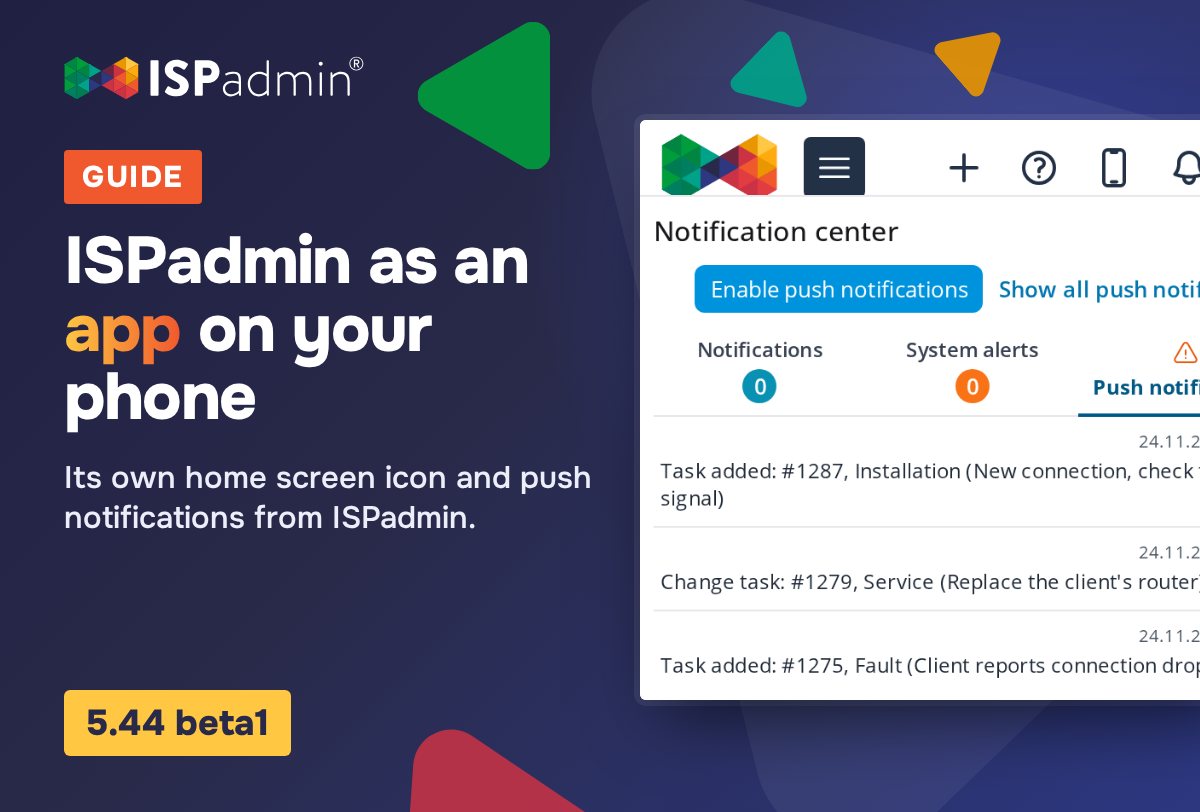
From ISPadmin 5.44 beta1, you can add ISPadmin to the home screen of your phone or tablet as an app. It opens in its own window without the address bar, and push notifications, such as one about a newly assigned task, arrive as regular phone notifications. We have also adapted forms for phones, including the task form in Scheduling.
Available from ISPadmin 5.44 beta1.
What’s new
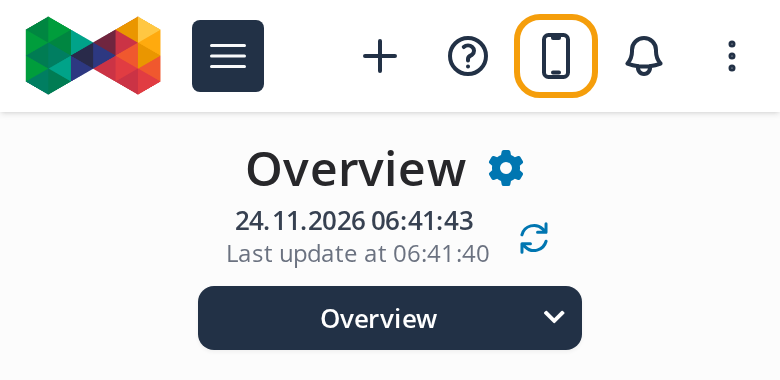
- On phones and tablets, the ISPadmin header has an Install app button with a phone icon.
- Once installed, ISPadmin has its own home screen icon and opens in its own window, without the browser address bar.
- Push notifications also reach the installed app and show the ISPadmin icon. Tapping a task notification opens that task.
- In Safari and on iPhone, push notifications no longer stop arriving after a few messages.
- Picking technicians, dates and times is easier on a phone.
What you need
- ISPadmin on an https:// address. Without a secure connection, push notifications do not work, Chrome does not offer to install the app, and Add to home screen only creates a shortcut that opens in the browser.
- On Android, Chrome, where you install the app straight from the button. In other browsers, such as Firefox, you install from the browser menu.
- On iPhone and iPad, Safari. Other iOS browsers can add the app to the home screen on iOS 16.4 or later. Push notifications require iOS or iPadOS 16.4 or later.
1. Install on Android
Sign in to ISPadmin on your phone and tap the phone icon (Install app) in the header. Chrome shows its own installation dialog. Just confirm it.
If the browser does not offer to install the app itself, ISPadmin shows a window with the steps: open the browser menu (⋮ or ≡), choose Install app or Add to home screen and confirm. In Firefox the option is called Install, or Add to home screen in older versions.
2. Install on iPhone and iPad
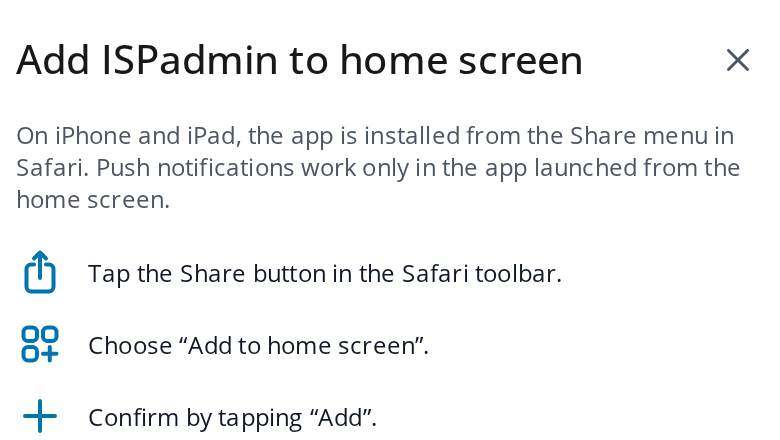
iOS does not allow installation from a button, so after you tap Install app, ISPadmin opens the Add ISPadmin to home screen window with the steps:
- Tap the Share button in the Safari toolbar. In iOS 26 it is in the ⋯ menu, in other browsers in the browser menu.
- Choose Add to home screen.
- Confirm by tapping Add.
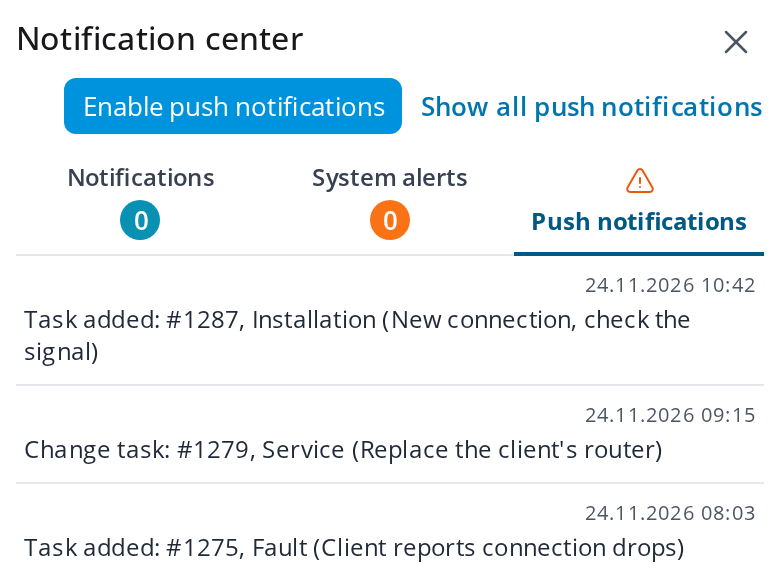
On iPhone and iPad, push notifications only work in the app launched from the home screen, not in Safari or any other browser. When you open ISPadmin in a browser, it points this out in the bell on the Push notifications tab and offers an Install app link.
3. Turn on push notifications
Open ISPadmin from the home screen icon, tap the bell, switch to the Push notifications tab and tap Enable push notifications. The phone asks whether ISPadmin may show notifications. Allow them. On Android, the app shares this permission with the browser. If you have already allowed notifications in the browser, the phone does not ask again, the button is not shown and notifications are turned on automatically.
You get push notifications, for example:
- from Scheduling, when a task is assigned to you or your task changes,
- from Chat, when a message arrives in a chat you are part of, or when someone adds you to a chat (unless you have muted chat notifications),
- from the Helpdesk and Network management and monitoring modules according to your Notification settings (the Send push notifications option).
Easier work on a phone
We have also adapted forms for phones, including the task form in Scheduling:
- On iPhone and iPad, the page no longer zooms in when you tap a field, so the Close button in the technician picker stays on screen. You can still zoom in manually.
- The technician picker and other newer dropdown lists fit above the browser toolbar on a phone, and the item you tap is selected right away.
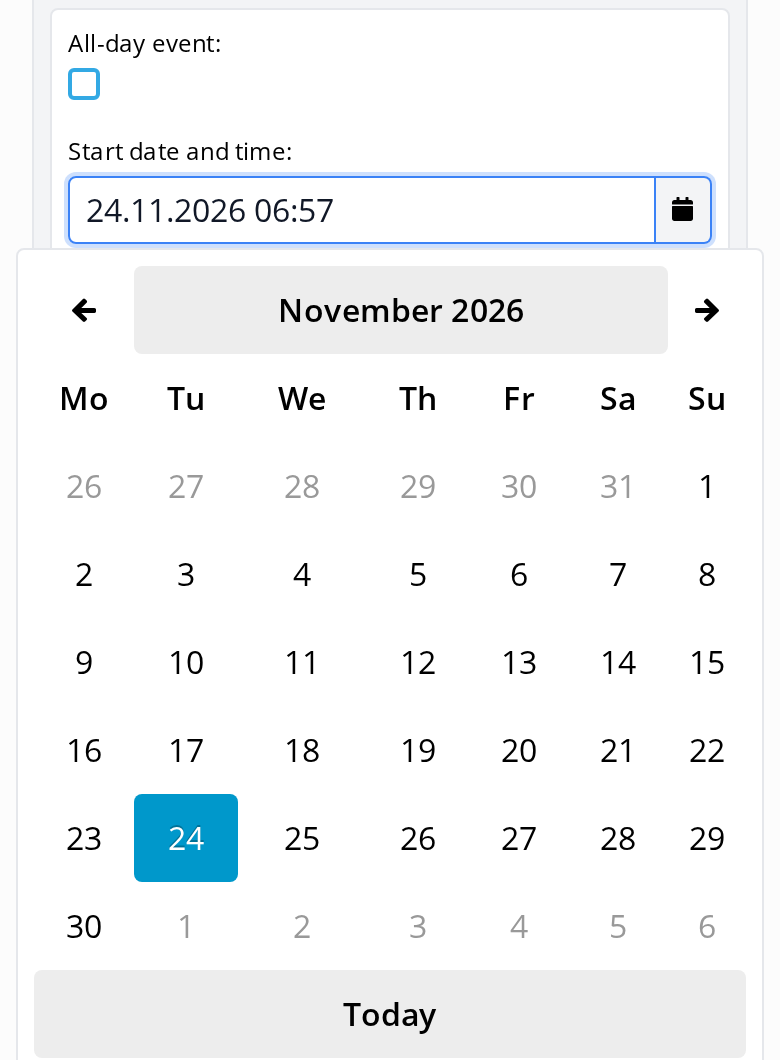
- You pick dates and times from a full-width calendar with larger cells. The keyboard no longer pops up over the calendar, so on a touch screen the date is entered from the calendar only.
- The task form fits the phone’s width even with several technicians selected.
Troubleshooting
- I can’t see the install button. The button is only shown on phones and tablets, not on computers. It is also hidden in the installed app.
- The notification did not appear among my phone notifications. When ISPadmin is open on the screen of an Android phone, the message is shown right inside ISPadmin. A message from the chat you currently have open is not shown at all. On iPhone and iPad, the notification always appears among the phone notifications.
- Push notifications don’t arrive on iPhone. Make sure you open ISPadmin from the home screen icon, not in Safari, and that you enabled notifications in the app’s bell.
- Notifications used to stop arriving in Safari. From 5.44 beta1, ISPadmin renews the subscription automatically when you open it, at most once every 24 hours. If notifications still do not arrive, on a Mac open Settings / Websites / Notifications in Safari and remove the ISPadmin website. On iPhone, delete the app from the home screen and add it again. Then enable notifications in the bell.
- The browser didn’t ask for permission. Notifications for ISPadmin are already allowed or blocked on the phone. To unblock them, use the notification settings of the browser or the phone.
What’s next
Push notifications from Chat are covered in ISPadmin Chat: team conversations stay with the client, not on someone’s phone.