Two-factor authentication in the Client portal: a password alone is not enough
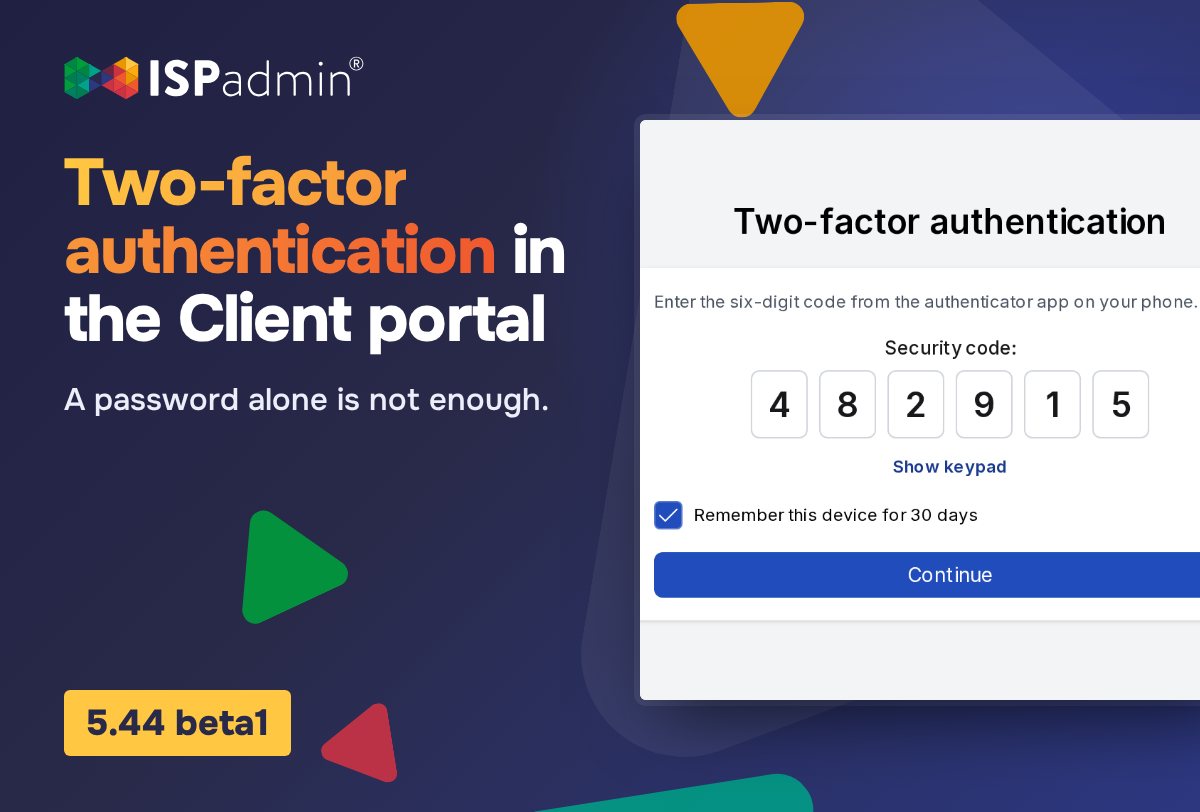
If a client uses the same password for the Client portal as for an online shop whose database has leaked, anyone who knows the password can log in to the portal. They can see the client’s invoices, contracts and personal data, and possibly change their contact details. ISPadmin 5.44 beta1 therefore adds two-factor authentication: after the password, the client enters a six-digit code from an authenticator app on their phone.
Available from ISPadmin 5.44 beta1.
What’s new
- Three modes: Disabled, Optional (can be enabled by the client) and Required for all clients.
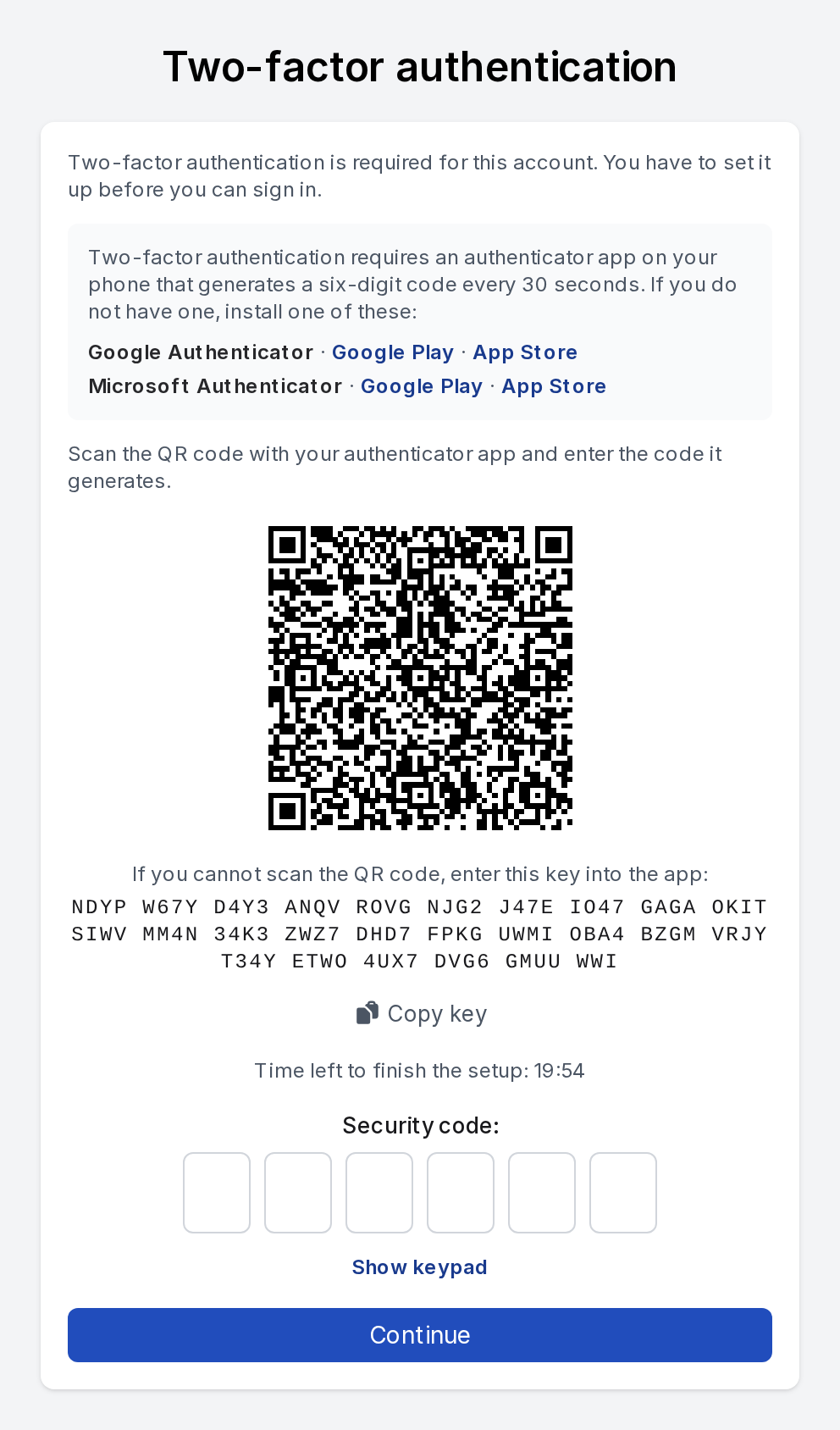
- The code comes from a standard authenticator app. The client links it by scanning a QR code. On a phone, the Open in the authenticator app button is enough.
- If you allow it, the client can remember a device for the number of days you set.
- Clients move the authentication to a new phone themselves.
- The Client card and the client list show who has it enabled. If a client loses their phone, you reset the authentication from the Client card.
What the client sees
In optional mode, the client turns 2FA on in the portal Settings and can also turn it off there. In required mode, the portal guides them through the setup right after the password at their next login. A client who is already logged in gets to the setup the next time they load a portal page. A client with a temporary password sets it up after changing the password. Above the QR code, the portal explains what an authenticator app is and where to get one. The client has 20 minutes to finish and sees the time left.
At later logins, they enter the code after the password. It can be pasted from the clipboard and is sent automatically after the sixth digit. The client has 5 minutes and 5 attempts. The portal shows how many attempts are left and, when they run out or the time expires, explains why the client is back at the login page.
If you allow it, the client can tick Remember this device (with the number of days from your settings) when entering the code. They then do not need to enter a code in that browser for that period. Remembered devices are listed in Settings, where the client can remove them.
A new phone is set up with I have a new phone: the client enters their password, scans a new QR code and verifies it with a code from the new app. Until then, the original authentication stays valid.
Overview and reset in ISPadmin
In optional and required modes, the Client card has a 2FA for the Client portal row. It shows when the authentication was activated, or when and why it was disabled. In required mode, you also see that the client has not set it up yet. The client list (Clients / Contacts) has a new 2FA for the Client portal column, and the Details filter offers Active 2FA for the Client portal and Inactive 2FA for the Client portal. In required mode, this is how you find clients who have not set it up yet.
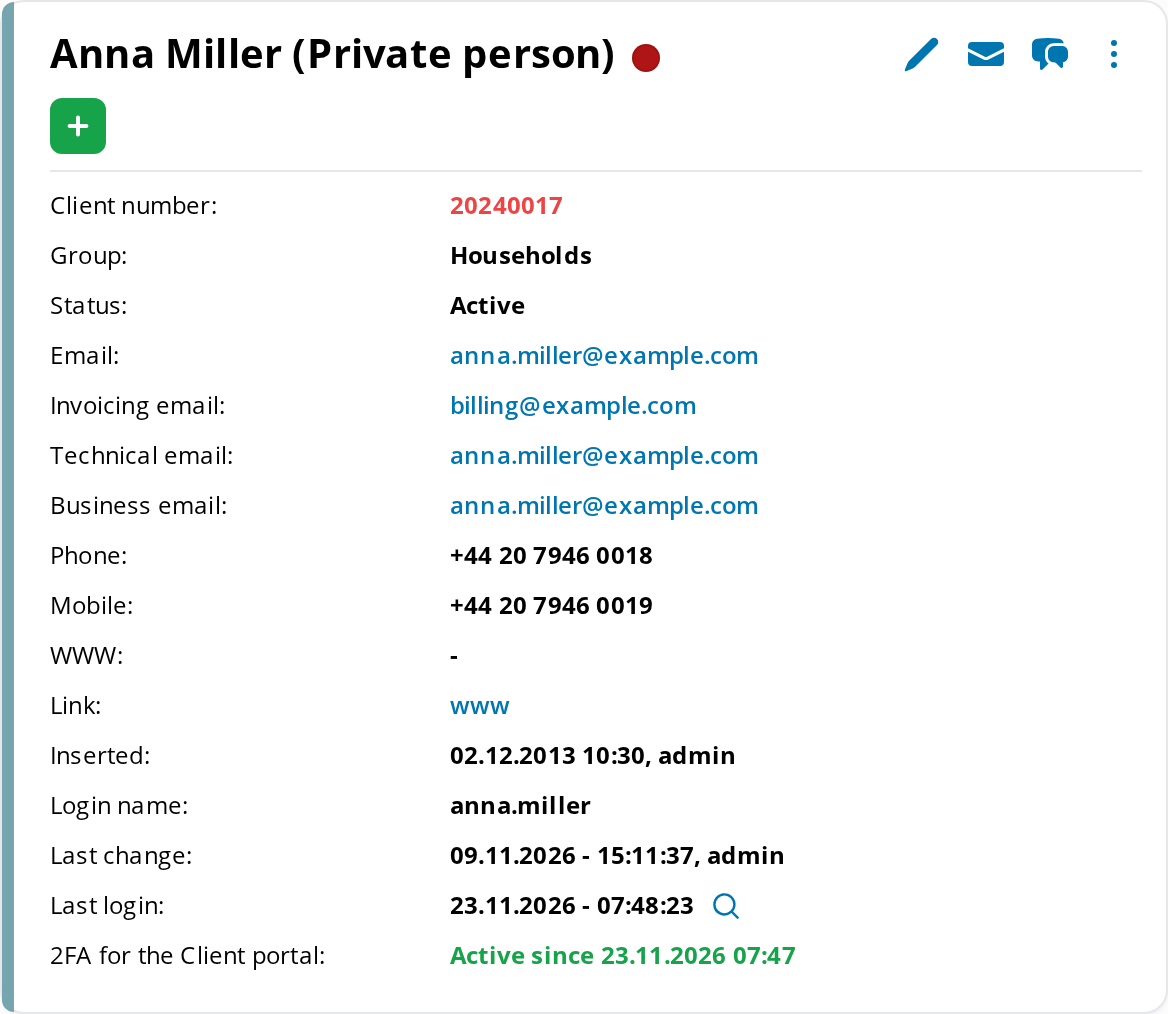
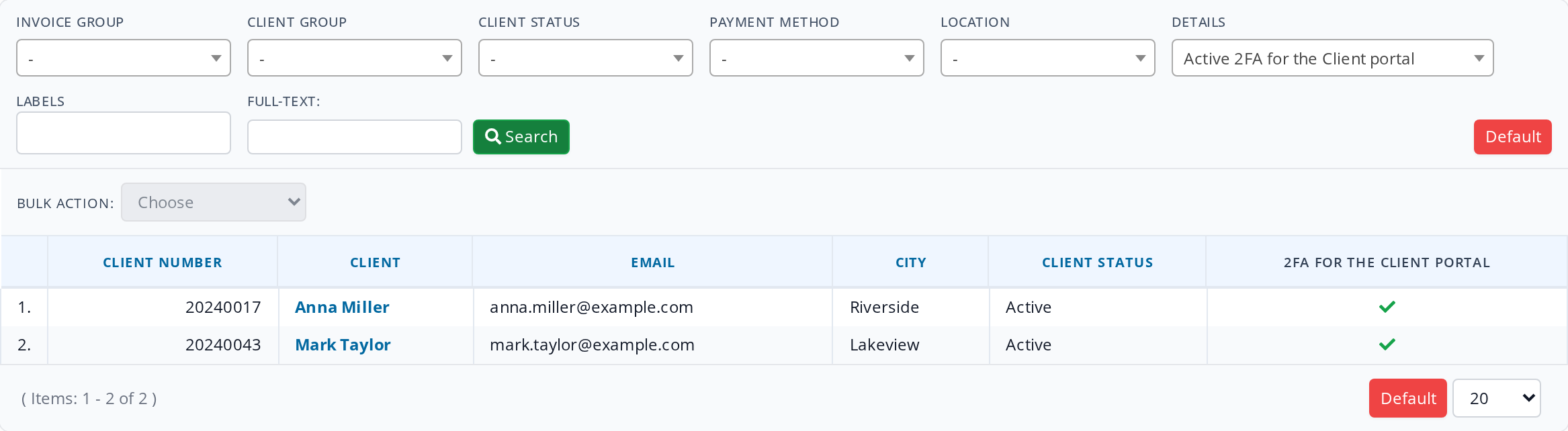
When a client loses their phone, use Reset two-factor authentication for the Client portal on the Client card. It is offered for clients with active authentication and requires the right to edit the client’s Personal information. If the client has an email address, they receive an email explaining what happened. In required mode, the portal asks them to set it up again at their next login. In optional mode, they can turn it on again in Settings. Enabling, disabling, phone changes and resets are all recorded in the client history.
What to set up
- Choose the mode in Settings / Syst. settings / Client portal / General under the Two-factor authentication for the Client portal setting. The default is Disabled.
- In the same settings, set how many days the portal remembers a device. The default is 0, which turns device remembering off, so the code is required at every login.
- If you switch the mode back to Disabled, the clients’ setups are kept. When you switch it on again, the code is required again without a new setup.
- Before switching to required mode, tell your clients they will need an authenticator app on their phone.
- The portal does not offer backup codes. A client without their phone contacts you and you reset the authentication.
- Resetting a forgotten password or generating a new portal password in ISPadmin disables two-factor authentication, and the client is notified by email if ISPadmin has their address. In required mode, the portal asks them to set it up again. In optional mode, they can turn it on again. A regular password change in the portal keeps it and only removes remembered devices.
- Emails about authentication changes are sent from the System email address in Settings / Syst. settings / General. Without it, they are not sent.
- The document signing link that the client receives by email or text message does not ask for a code, but it only gives the client access to the Documents section. Opening the portal from the Client card does not ask for a code either.
For more on security, see ISP security after NIS2 and the guide How to make ISPadmin reachable only from your network. All changes in this version are in the ISPadmin 5.44 changelog.