
ISPadmin Chat: team conversations stay with the client, not on someone’s phone
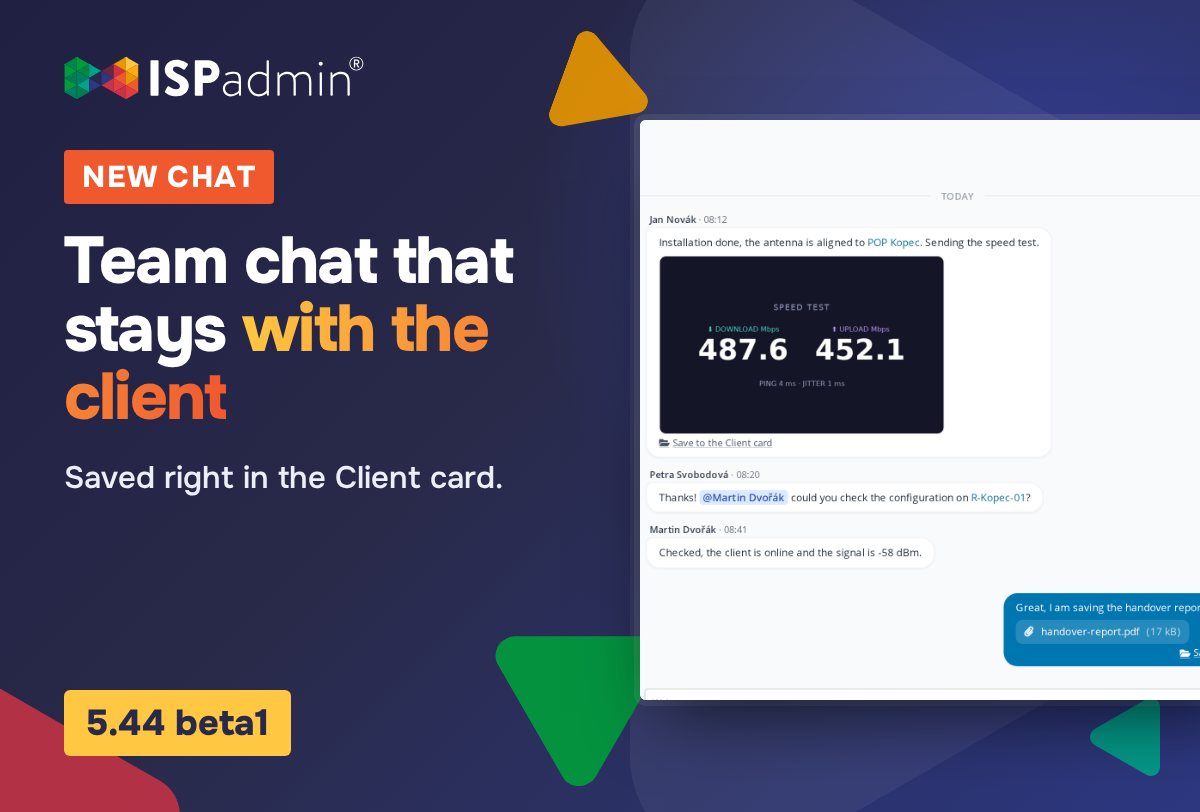
A technician finishes an installation, takes a photo of the speed test and sends it to dispatch over WhatsApp. Six months later there is a complaint and nobody can find the photo. That is why ISPadmin 5.44 beta1 adds Chat: internal team conversations that end up in the Client card on their own.
Available from ISPadmin 5.44 beta1.
What’s new
- Chat has its own item in the main menu and a window you open from the top bar on any page.
- Use @ to mention a colleague, a client, a router or a POP. A chat that mentions a client also shows up in that client’s Client card.
- Photos and files from the chat can be saved to the client photo gallery or the client files.
- New messages arrive instantly, without reloading the page. Participants are notified in the Notification center and by browser push notifications.
- Only participants can see a chat.
A conversation that belongs to the client
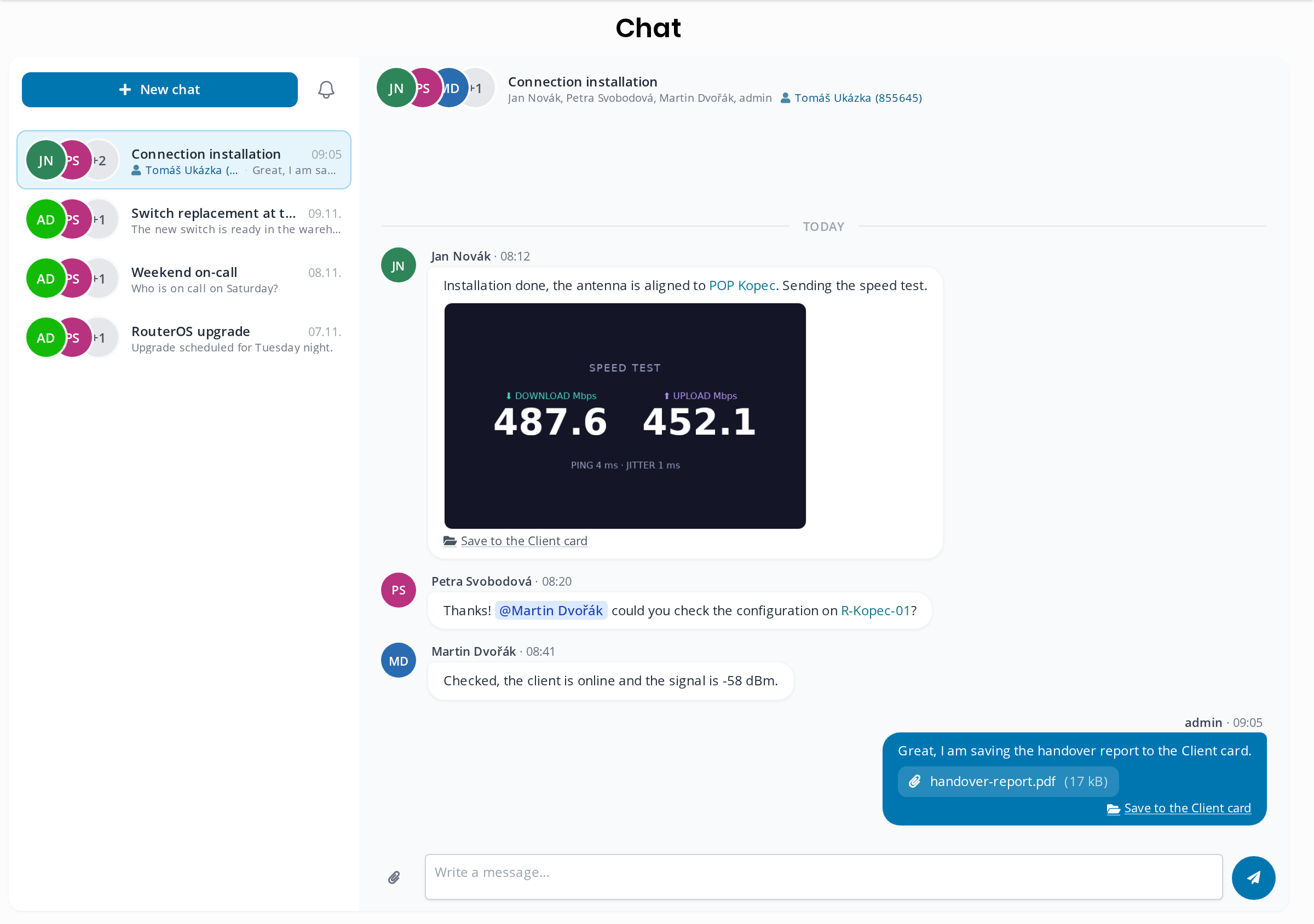
Start a conversation with New chat. Enter a subject (required) and pick the colleagues who should take part. A chat started from the Client card is linked to that client right away. Otherwise, just mention the client with @ in a message and the chat appears in the Chat tab of their Client card.
Mentioning a colleague who is not in the conversation yet works the same way: ISPadmin adds them to the chat and notifies them. Mentioning a router or a POP links straight to its card, so nobody has to ask which device you mean.
A chat does not have to be linked to a client. You can also use it to sort out the weekend on-call or a switch replacement.
Chat at hand on every page
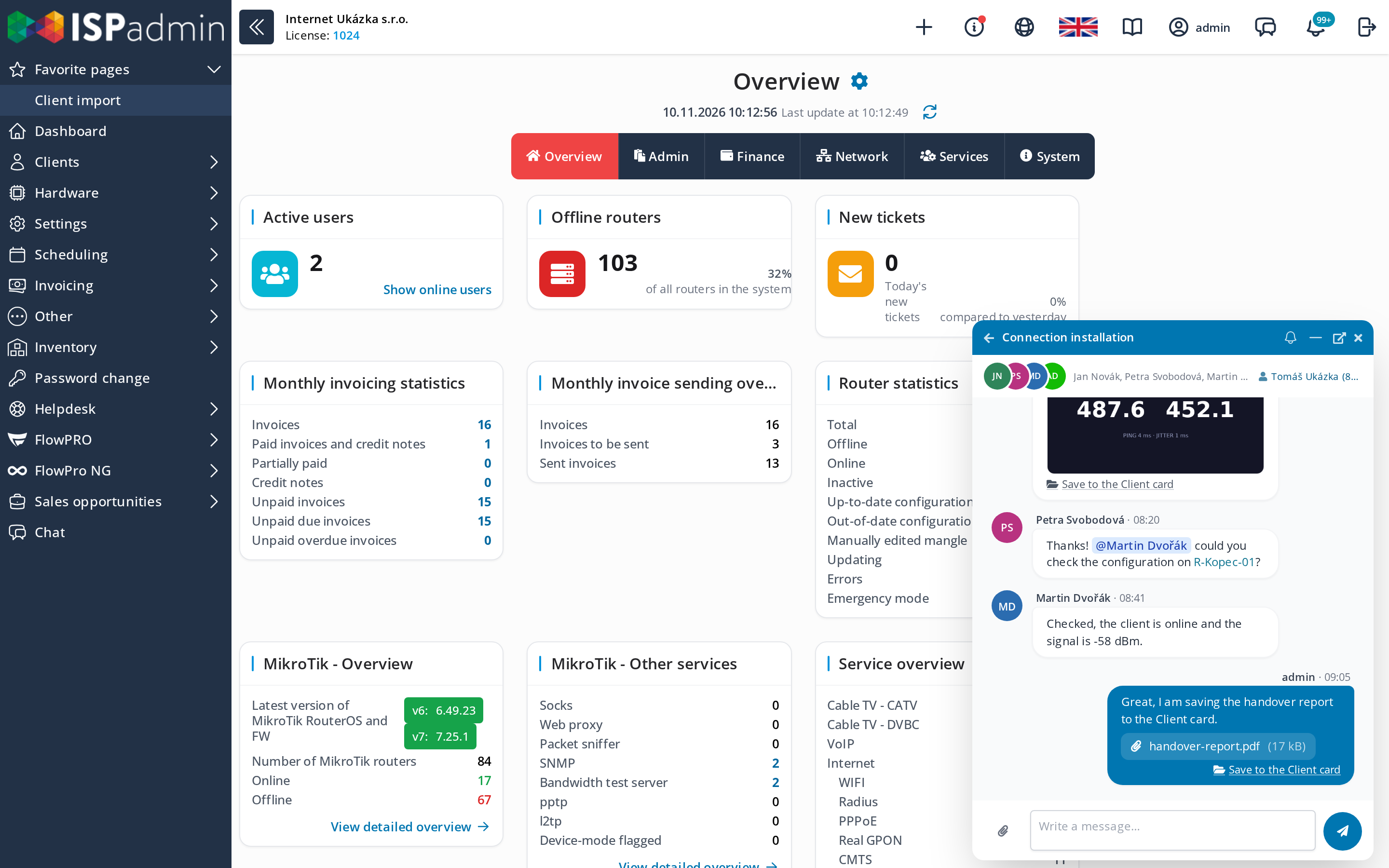
You do not have to leave what you are working on. The chat icon in the top bar opens a window where you can read and reply. The window stays open when you move to another page, and when you do not need it you can minimize it to a bar in the bottom right corner. The number of unread messages is shown next to the icon.
You get a push notification when someone adds you to a chat, mentions you or writes in one of your chats. If they get in the way, you can mute them for 24 hours, a week or a month, or turn them off completely. Muting applies to all chats, and the unread count keeps working.
Installation photos go straight to the client
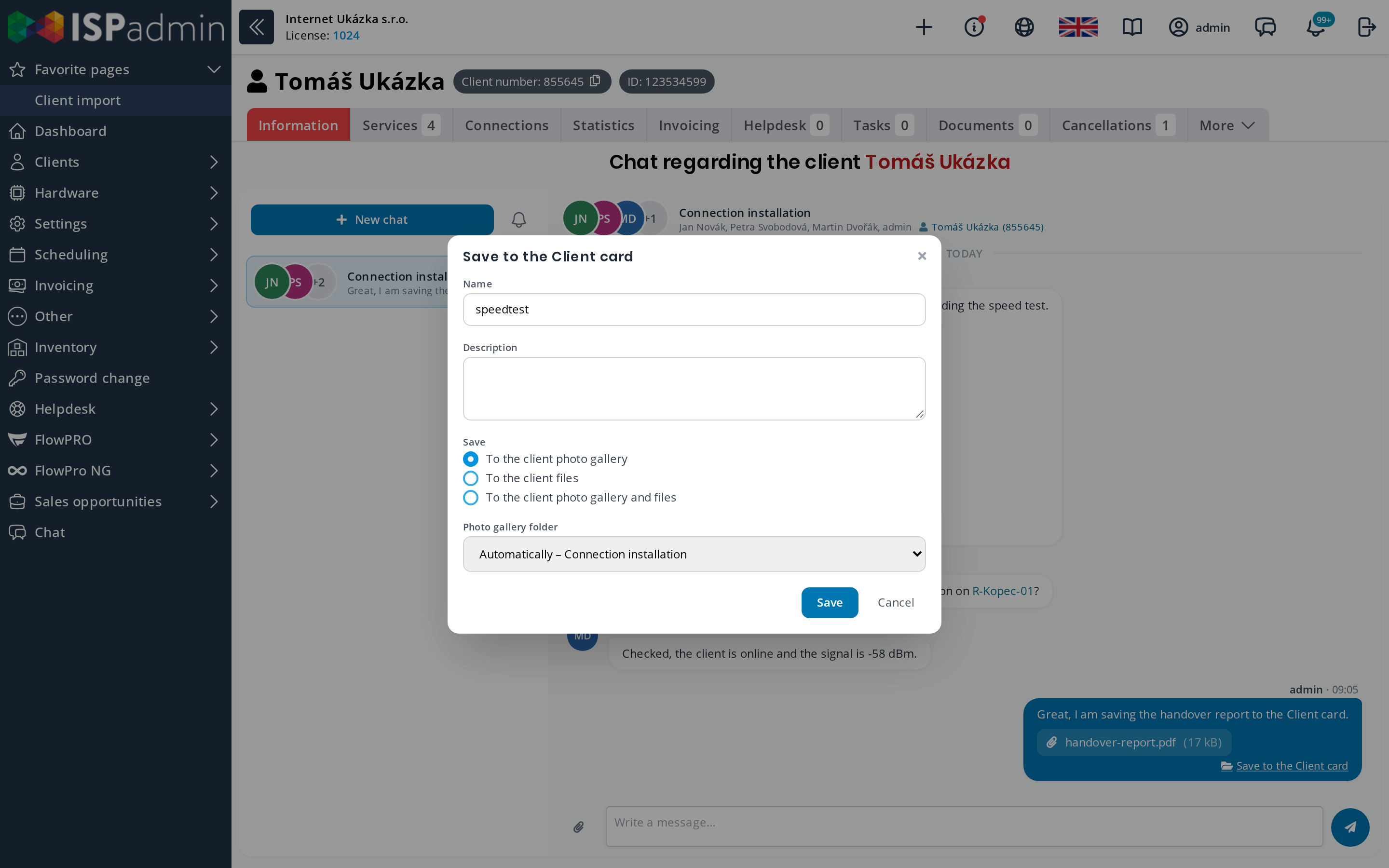
You can attach files to messages. Images are shown as a preview and open in a larger view when clicked. In a chat linked to a client, use Save to the Client card: enter a name and a description and choose whether the attachment goes to the client photo gallery, the client files or both. The Automatically option creates a folder named after the chat subject. The installation speed test is then still with the client a year later.
Who can see a chat
Only participants can see a chat: the creator, the colleagues they added and anyone who was mentioned. Other users cannot see it, neither in the Client card nor through a direct link. The chat creator can remove participants in Chat participants. The chat then disappears for the removed user, and only the creator can bring them back.
What to set up
- Chat is part of the core system, no extra module is needed.
- Users need the Read permission for Chat in their permission settings. Without it they see neither the menu item, the top bar icon nor the tab in the Client card, and they cannot be added to a chat or mentioned. After the update, grant the permission to everyone who should use chat.
- Push notifications go to users who have allowed them in their browser.
- A chat can be linked to one client only. Once it is linked, mentioning another client does not change that.
- Attachments can only be saved to the Client card from a chat linked to a client. Mentioning a router or a POP does not link the chat to it, the mention works as a link.


